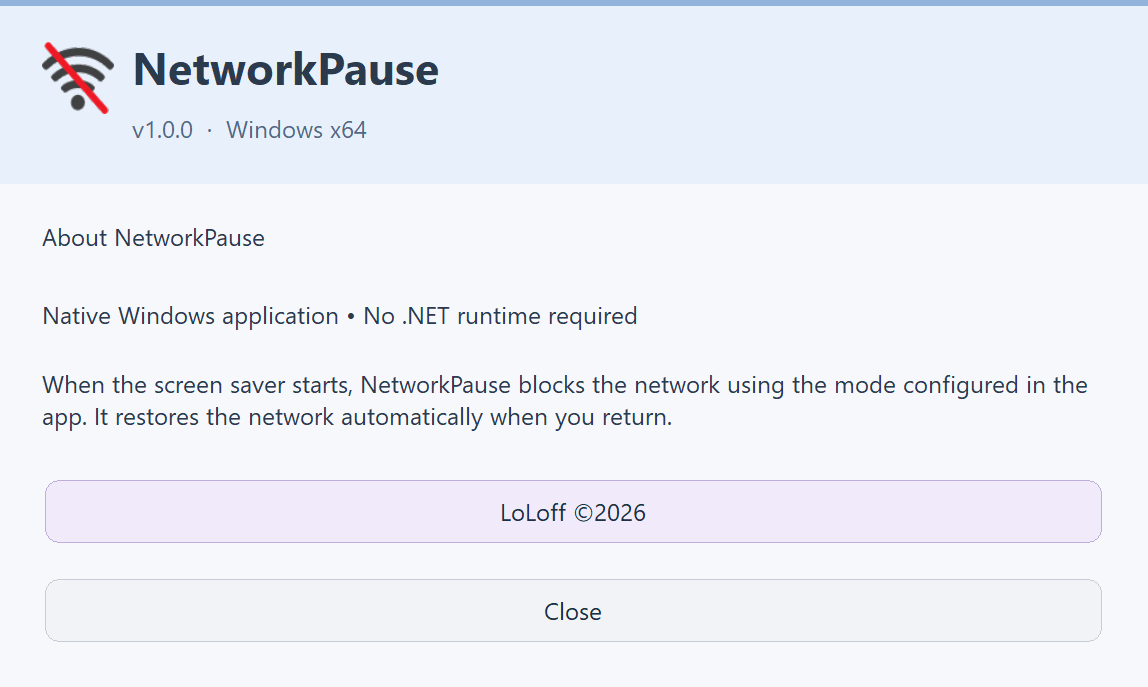
Actual screenshots of NetworkPause 1.0.0 in English, captured in test mode. Installation status and displayed values reflect the capture environment, not your PC. Select an image to enlarge it.
1. What NetworkPause does
NetworkPause combines an animated journey through the stars with a temporary network interruption. When the screen saver genuinely starts after inactivity, its service applies the configured blocking mode. On your return, it requests network restoration.
This is a native C++ / Win32 application for Windows 10 and 11 x64. No .NET runtime or runtime download is required. Once you have downloaded the installer, installation does not require an Internet connection.
Important: this is not an antivirus or a guarantee that your PC cannot be accessed. Keep Windows Firewall, updates and your existing protections enabled. A screen saver is not PC sleep; requiring a password on return is a separate Windows setting.
2. Install and choose a folder
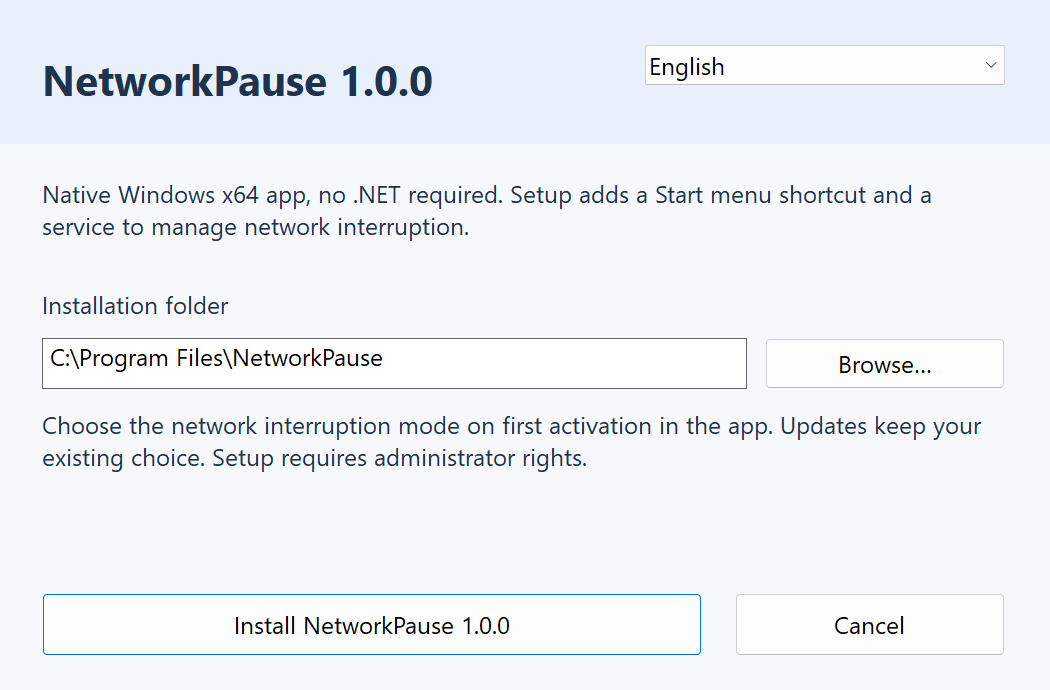
Close old NetworkPause windows and Windows screen saver settings. Run NetworkPause-Setup-1.0.0.exe normally, select a language and check the proposed folder. Browse selects a parent folder and adds a NetworkPause subfolder. You can also edit the path directly.
Choose a dedicated, empty folder for a fresh installation on a fixed local disk. Its parent must already exist and be protected from changes without administrator rights, for example under Program Files. Network locations, linked folders and unprotected user folders are rejected to protect the Windows service.
Select Install and approve the administrator prompt only if you recognise the program. This version is not digitally signed, so Windows may show an unknown publisher warning. Check the file’s origin; do not disable Windows security protections to install it.
Setup adds the application, .scr file, uninstaller, shared shortcut and automatic service. It does not select NetworkPause as your screen saver. Updates keep the existing location; to move an existing installation, uninstall and then reinstall.
3. First activation
Open NetworkPause from the Start menu in your usual user session. Select Enable NetworkPause. If no mode has been saved yet, read the two mode descriptions, choose one, select Continue and approve the requested elevation.
Cancelling the choice or refusing permission does not enable the screen saver. Once confirmed, NetworkPause becomes the screen saver for your account. Open Customise screen saver to set the idle time, then Save.
An upgrade may keep a previously stored mode, including the firewall default used by older versions. Use the network interruption mode button to review or change it.
4. Read the main window
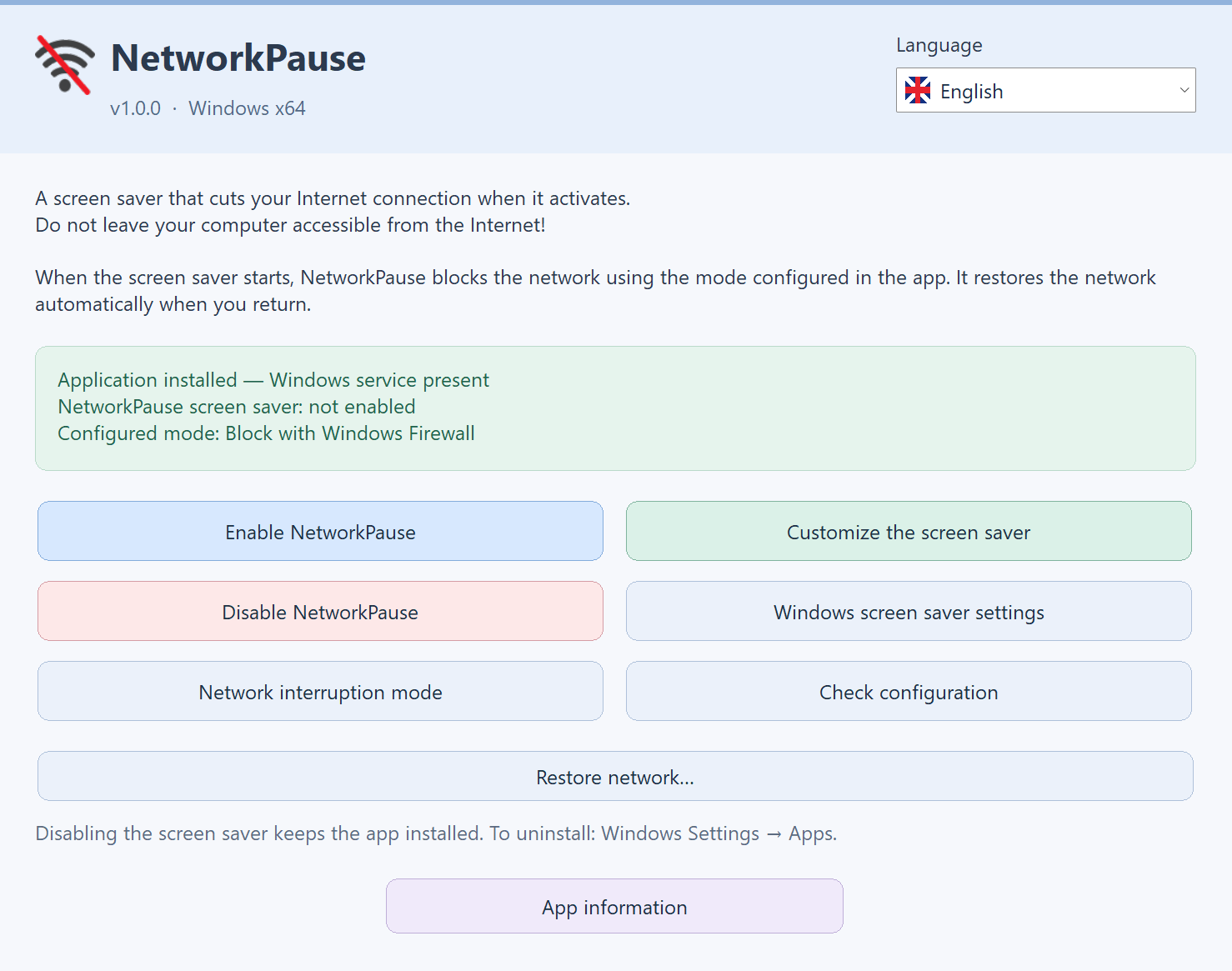
Application installed — Windows service present means that the components are installed. It does not mean the screen saver is enabled or the network is currently blocked. The enabled / not enabled line describes the Windows selection and activation. Configured mode shows the saved choice or a pending first choice.
Check configuration inspects screen saver selection, automatic activation, idle time, the .scr file, the service and the reported blocking state. This is a local diagnostic: it neither interrupts the network nor tests whether the Internet is actually reachable.
The Language list switches between French, English, German, Chinese, Spanish and Italian. Technical errors from Windows may appear in a different language.
5. Choose a blocking mode
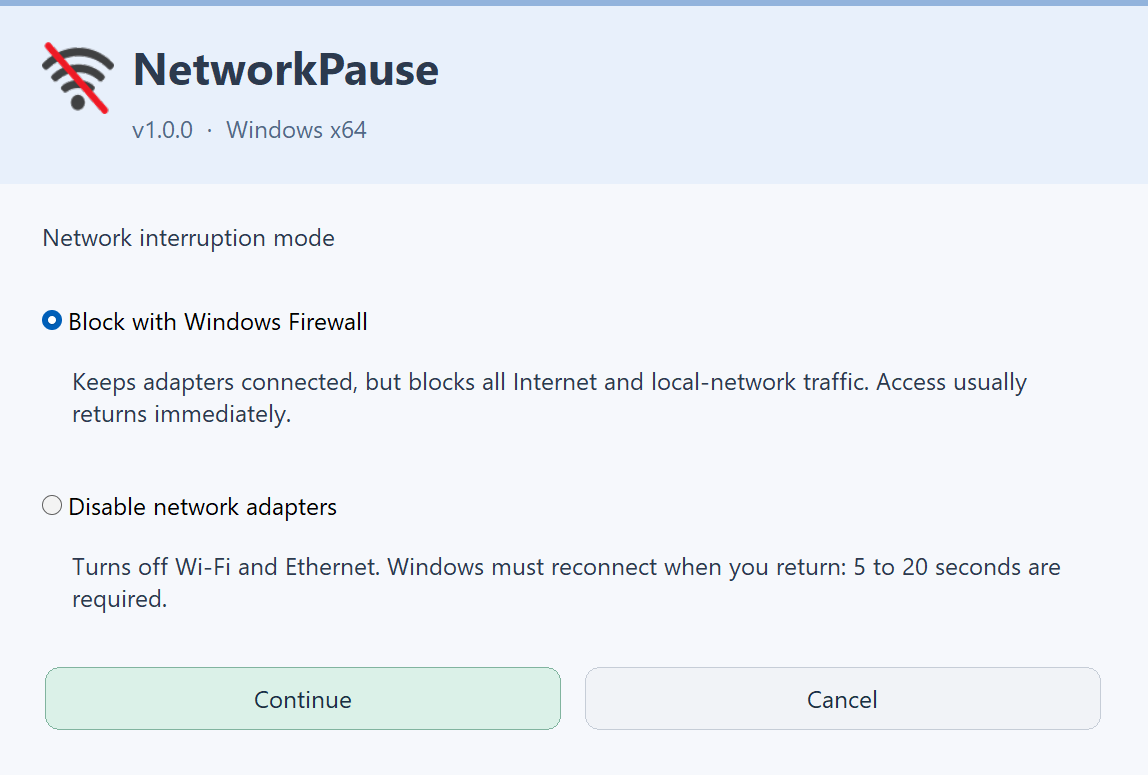
Firewall blocking uses temporary Windows Filtering Platform filters for incoming and outgoing IPv4 and IPv6 communications. It blocks BOTH the Internet and the local network, including network shares and printers. Adapters remain enabled, so restoration is generally faster; there is no guaranteed fixed delay.
Adapter disabling turns off physical Ethernet and Wi-Fi interfaces that were initially enabled and attempts to enable them again on return. Reconnection may take around 5–20 seconds, sometimes longer depending on hardware, Wi-Fi and network configuration. Virtual adapters and other network paths are not guaranteed to be covered by this mode.
You can change the mode after installation using the network mode button, with administrator permission. Both modes can interrupt downloads, calls, remote access and network operations. Save your work and pause important transfers before testing.
6. Stars, idle time and multiple displays
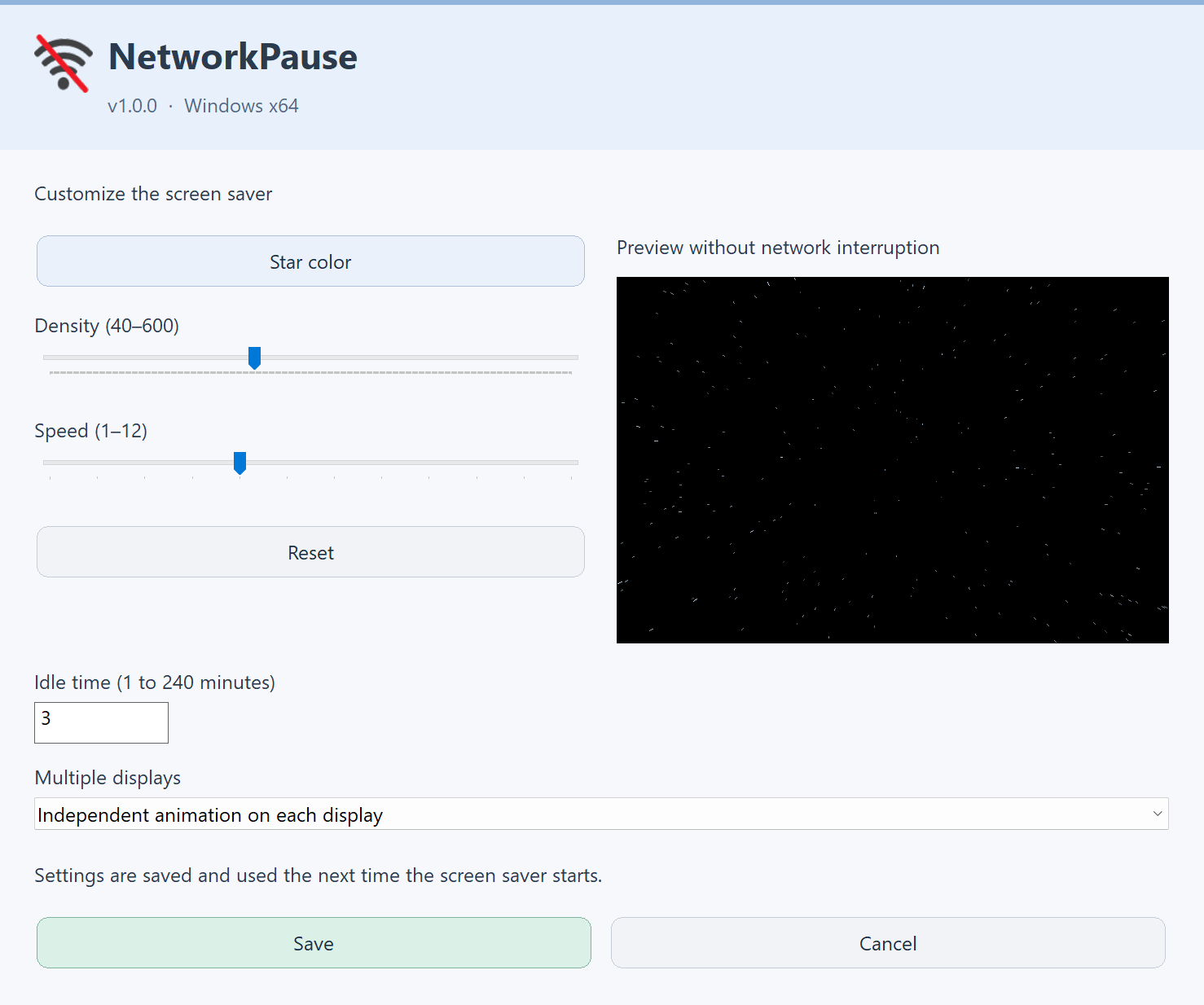
In the screen saver customisation window, choose star colour, density (40–600) and speed (1–12). The embedded preview shows the animation without interrupting the network. Reset restores the visual defaults; use Save to keep your changes.
Set idle time from 1 to 240 minutes. It is applied only when you Save; Cancel does not change it. The delay is an inactivity threshold, not a promise to start at an exact second: video playback, applications or Windows policies may postpone activation.
Multiple-display options are independent animation on each display, a panorama across the whole desktop, or the primary display only. With the last option, other displays remain visible. If the animation looks split between displays, choose independent animation instead of panorama.
7. Preview, test and exit
Use the embedded preview to watch the animation without interrupting communications. The Windows miniature is also a preview; the Windows Preview button is distinguished from automatic activation using recent user activity. To check real blocking, let the idle time expire while you are physically at the PC, not connected remotely.
You can run a continuous connectivity test against a known destination that responds before the test, then inspect its log after returning. An isolated missing reply does not prove a complete disconnection: compare it with NetworkPause’s reported state and check reconnection too. Do not rely solely on the Windows network icon or a cached web page.
Move the mouse or press a key to exit. Allow the selected mode time to restore connectivity. If Windows asks for your password, sign in normally. If the animation will not close, try Ctrl+Alt+Del and then consult the recovery section.
8. Notification icon and other users
A green shield means NetworkPause is selected as the screen saver; grey means it is not. This colour does not show whether the network is currently blocked. If hidden, open the additional taskbar icons.
Right-click to access screen saver customisation and Network status. The latter reports whether NetworkPause is configured and enabled and, when available, the idle time before activation.
Files and the service are shared by all users. Each account must enable its own screen saver and has personal visual preferences; the network mode is shared across the PC. Blocking affects the entire PC, including other open sessions. Simultaneous multi-user scenarios are not guaranteed.
9. Disable without uninstalling
Disable NetworkPause removes its selection for your account. It restores a valid previous screen saver, its saved activation state and timeout, or selects None if no valid previous saver exists. If another saver is already selected, it leaves it alone.
The application, service, chosen mode and preferences remain installed. The shield turns grey. This is not a manual network recovery command: use Restore network for that. Select Enable NetworkPause later to use it again.
If Windows screen saver settings were already open, close and reopen that window to refresh its displayed selection.
10. Recovery and troubleshooting
If Internet access is slow to return, allow for Ethernet/Wi-Fi reconnection in adapter mode. Open Check configuration, then use Restore network and approve administrator permission if requested. Confirmation means the request was sent, not that Internet connectivity has already been restored.
If recovery fails, check Windows network connections and your router, then restart the PC if needed. The service journals adapters to re-enable and retries recovery; temporary firewall filters also disappear when their filtering session ends. These mechanisms cannot rule out hardware or network failures.
If the saver never starts, check its selection, activation, timeout and service, and close applications that may prevent inactivity. Do not confuse the screen saver timeout with display-off or PC sleep settings.
When reporting an issue, include the version, mode, exact message, display count and steps taken. Do not share passwords or sensitive network details.
11. Update and uninstall in Windows
Run the new installer to update the native edition; it keeps the installation folder and configured mode. If an old .NET edition is still installed, uninstall it before using this native edition.
For complete removal, close previews and open Windows Settings → Apps → Installed apps (or Apps & features, depending on Windows). Select NetworkPause, choose Uninstall and approve elevation. Do not simply delete its folder manually.
The uninstaller stops the service, attempts network restoration and removes files, the shortcut and automatic startup. Personal preferences remain. Restoring the previous saver affects the account running the uninstaller; other users may need to select another screen saver.
12. Version, restart and application information
Application information shows the name, version and LoLoff ©2026 link. This guide covers native edition 1.0.0. Screenshots do not guarantee operation on every hardware configuration.
After a restart, the app remains installed, the service is configured to start automatically and the notification icon returns at sign-in. Screen saver selection is retained per user; installation alone does not enable it.
Run the app normally. System operations request additional rights when needed. Running the entire interface with another administrator’s credentials may change that account’s screen saver preferences instead of yours.