1Get started
- Download the application and save it in a folder of your choice.
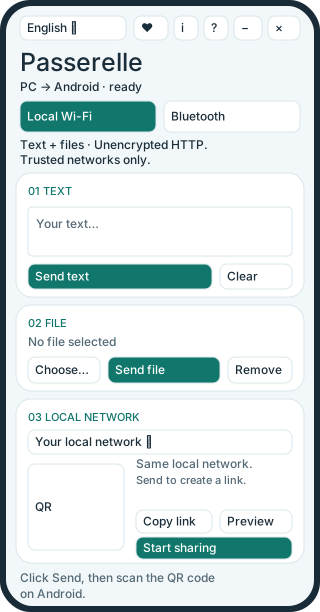
- Double-click the file to open Passerelle. It is a portable application: no installation is required.
- Select Local Wi-Fi or Bluetooth at the top of the window.
For Windows 10 and 11, 64-bit. Choose the French or English interface; the preference is remembered. No Android application or certificate is needed.
2Share over local Wi-Fi
Your phone and PC must use the same local network. The PC may connect by Ethernet to the router used by your phone’s Wi-Fi.
- Enter your text and click Send text. For a file, select it with Choose…, then click Send file. You can share one text and one file at the same time.
- If Windows asks, allow Passerelle on your trusted private network.
- On Android, scan the QR code or open the displayed link in a browser.
- Copy the text, save it as a .txt file, or download the shared file. Files usually appear in the phone’s Downloads folder.
- Click Stop sharing to disable the link and close connections.
The network menu selects the PC’s IPv4 address. If you change the interface while sharing, open the new link or QR code on Android. The server uses the first available port from 8765 to 8785. The application does not open ports on your router.
Preview opens the page on Windows. On Android, the page checks for changes every two seconds and pauses these checks when hidden. Downloading a file requires an action on the phone.
3Send over Bluetooth
Your PC needs an active Bluetooth adapter. Your phone must support receiving Bluetooth files using OBEX/OPP.
- Enable Bluetooth on both devices and open Android’s Bluetooth settings to make the phone discoverable.
- In Passerelle, click Choose / pair and select your phone.
- If pairing is requested, compare the six digits shown on the PC and phone. Click The codes match and confirm on Android only if the codes are identical.
- Select your file in Passerelle, then click Send file. For text, click Send as .txt.
- Accept the incoming transfer on Android. Passerelle shows progress, lets you cancel, and displays the result after the phone confirms reception.
The selected phone is remembered for the session. A paired device normally does not ask for a new code. Text is received as a UTF-8 file to open; it is not automatically copied into the phone’s clipboard. No temporary text file is created on the PC.
Bluetooth mode stops Wi-Fi sharing. The Bluetooth connection requests authentication and encryption. Android may restrict accepted file types or sizes.
4Window controls, support and updates
- The language menu, ♥, i (Help), ? (update check), − and × share the top row. Drag the header to move the window.
- ♥ (Like) records your support on Loloff. One support vote is counted per version and Windows profile. Once confirmed, the button displays ♥✓.
- ? checks for an update. The installed version is shown in the header. If a newer version is available, a confirmation offers to open its download in your browser. Installation remains a manual action.
These two functions contact the Internet only when you request them and run in the background. If the connection fails, you can retry and continue local transfers.
5Manage text and files
- Clear empties the text field and removes shared text. After editing text, click Send text to update what is shared.
- Remove prevents further downloads of the file. A transfer already in progress may finish; Stop sharing closes connections.
- Drag and drop selects the first dropped file. You must then send it.
- The selected file is protected against modification and deletion while in use.
Over Wi-Fi, files are read in blocks without loading the entire file into memory or applying a fixed application size limit. Each connection has a 30-minute limit; interrupted downloads cannot resume. Bluetooth supports up to 4 GB minus one byte, subject to phone limits. You can enter up to about one million characters, sometimes fewer if you use emoji or certain symbols. The text sent must not exceed 4 MB.
6Network and privacy
Wi-Fi uses unencrypted HTTP. Use a trusted local network: someone who can intercept the traffic may read its contents and link. Each sharing session generates a random access token. Anyone who has the link and can reach your PC can read the published content.
Transfers stay local, with no cloud storage or account. The QR code is generated on your PC. Stopping sharing revokes the link; content remains in memory until cleared or the application is closed.
The ♥ button uses a random identifier stored in your Windows profile and sends it over HTTPS together with the application version. It does not send shared text, files, profile names or email addresses. The ? button lets you check the latest version of the application. There is no automatic Internet communication at startup.
7Troubleshooting
- The phone cannot open the Wi-Fi link
- Check that both devices use the same local network; mobile data alone will not work. A guest network, VPN or firewall may block the connection. Select the appropriate address in the network menu and allow the application on your private network without disabling the firewall globally. After changing the PC’s network, restart sharing and open the new link.
- Copy does not work on Android
- Long-press the text to select and copy it manually.
- The pairing code appears only on Android
- Cancel the request, then try Choose / pair again. Never confirm a code you cannot compare. If pairing stops working, remove the device from both Windows and Android settings, then pair again. If your phone requires a typed PIN, pair it in Windows settings before selecting it in Passerelle.
- The Bluetooth transfer does not complete
- Keep Android unlocked, accept the incoming transfer notification, and check OBEX/OPP support and the file type. Windows or the Bluetooth driver may delay cancellation.
- The update check or support vote fails
- Check your Internet access and try again. Local Wi-Fi and Bluetooth transfers remain available.